

Polls
Polls are a quick and easy way to answer questions during class. Your instructor may use polls to check understanding, gather feedback, or spark discussion.Answering Polls
There are two ways to respond to a poll:Via QR Code or Link
Your instructor may display a QR code or share a link during class:- Scan the QR code with your phone camera, or click the link provided by your instructor
- The poll question and answer options will appear
- Select your answer(s) from the options displayed
- Click Submit to send your response
Via the Polls Page
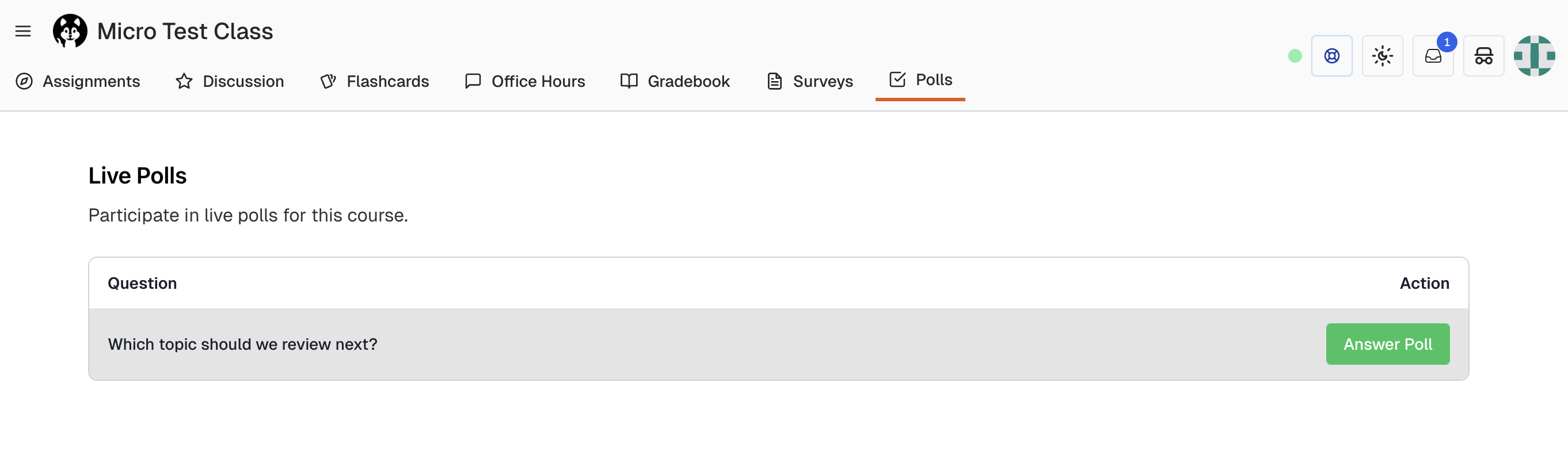
You can also access polls directly from Pawtograder:- Navigate to your course in Pawtograder
- Go to the Polls section in the navigation
- Live polls from your class will be displayed
- Click Answer Poll to open the poll
- Select your answer(s) and submit
Login Requirements
Polls can be configured by your instructor to require login or allow anonymous responses:| Mode | How It Works |
|---|---|
| Login not required | Scan the QR code or use the link to answer immediately without signing in. Your response is anonymous. |
| Login required | You must sign in to Pawtograder before answering. Your response is associated with your student account. |
If a poll requires login and you’re not signed in, you’ll be prompted to log in before you can submit your response.
Poll Types
You may encounter two types of polls:Single Choice
- Select exactly one answer from the options
- Uses radio button selection
- Clicking a new option automatically deselects your previous choice
Multiple Choice
- Select one or more answers from the options
- Uses checkbox selection
- Choose all options that apply to the question
Submitting Your Response
- Review your selected answer(s)
- Click the Complete or Submit button
- You’ll see a confirmation that your response was recorded
Once submitted, your response cannot be changed. Make sure you’ve selected the answer you want before submitting.
Poll Availability
- Polls are only available when your instructor has made them live
- Most polls automatically close after one hour
- Your instructor may also manually close a poll at any time
- If a poll is closed, you won’t be able to submit a response
Troubleshooting
”No active polls” message
- Your instructor may not have any polls open right now
- Wait for your instructor to start a new poll
- The page will update automatically when a poll becomes available
QR code not scanning
- Make sure your camera is focused on the QR code
- Try moving closer or adjusting the angle
- Use the direct URL instead (ask your instructor to display it)
Login prompt appears
- The poll requires authentication
- Sign in with your Pawtograder credentials
- After signing in, you’ll be redirected to the poll
”Poll is closed” error
- The poll is no longer accepting responses
- This may be because the 1-hour window has passed
- Or your instructor manually closed the poll
Tips for Students
- Have your device ready: When your instructor announces a poll, be ready to scan the QR code quickly
- Read carefully: Take a moment to read the question and all options before answering
- Don’t overthink: Polls are usually meant for quick responses, not extended deliberation
- Ask questions: If you don’t understand the poll question, ask your instructor for clarification